

PGT: GFX, Launcher & Optimizer
Trilokia Inc.
I approached PGT: GFX, Launcher & Optimizer as a practical tool rather than as a game companion with a lot of decoration. Developed by Trilokia Inc., it sits in the Libraries & Demo section, although its real audience is people who play specific FPS titles on mobile and want a more deliberate way to prepare those games before starting a match. It is free, rated for Everyone, and supports devices running Android 7.0 or later.
The basic situation is easy to recognize: a game runs, but the image quality, frame response, or overall feel is not quite right. Usually I would open the game, search through its own graphics menus, change one option, restart, test again, and repeat the process. PGT is designed to move that adjustment work into a separate utility. That makes it interesting for players who enjoy tuning their setup, but less useful for anyone expecting a universal speed button that improves every mobile game automatically.
Its reputation is also substantial. The app has an average rating of 4.5 from around 187 thousand ratings, with more than 10 million installs and roughly 2 thousand written reviews. Those figures do not prove that it will suit every phone, but they do show that the idea has reached a large audience. The current version is 0.21.0, and the short store label is simply “PGT,” which tells you very little until you actually explore what the utility is meant to do.
From an uneven game session to a prepared launch
Start with the problem, not the menu
My first recommendation is to begin by identifying what feels wrong in the target FPS game. If the image is too soft, the controls feel delayed, or the phone becomes uncomfortable during longer sessions, changing every available setting at once is a poor starting point. A useful workflow begins with one complaint and one goal. For example, I might want a cleaner picture without making the game feel less responsive, or I might prefer steadier play even if that means accepting a simpler image.
That distinction matters because graphics tuning is always a trade-off. Higher visual detail can make a scene easier to read, but it can also ask more from the device. A lower visual load may feel more consistent, yet the result can look less attractive. PGT is most valuable when I use it as a controlled adjustment layer, not as a promise that every setting should be pushed upward.
Related News

Instagram Is No Longer a Photo App. It Is an Attention Engine

Microsoft Teams Mobile: When Collaboration Becomes Navigation

How the NFL App Adapts to Android and iOS Updates

Temu: Elevate Your Shopping Experience to Billionaire Status

Why Traffic Rider Works Best as a Precision Reflex Game

How Google’s Find Hub Transforms Everyday Searches
The app’s focus on specific FPS mobile games is important. I would not install it assuming that it can manage every title on my phone. Its usefulness depends on whether the game I care about belongs to the group it is intended to support. That is one of the first questions to settle before spending time on profiles, launch options, or repeated testing.
Prepare the device before changing anything
Before opening the utility, I would close unrelated apps, make sure the phone is not already struggling with heat, and note how the game behaves in its normal state. This is not a feature of PGT; it is simply good testing practice. Without a baseline, it is easy to mistake a temporary improvement for a real one. A match may feel better because the phone was cooler, the network was quieter, or fewer background tasks were active.
I also prefer changing one meaningful choice at a time. If I alter image quality, resolution-related options, and launch behavior together, I lose the ability to tell which adjustment helped. The app encourages a more technical mindset, and that is both its strength and its first point of friction. A player who wants a single “best” button may find this process slower than expected.
Gallery
Move from the utility into the game
The practical handoff is the key part of the experience. I use PGT to prepare the selected game, then move into the game itself and judge the result under the same conditions as before. That means testing in a normal match or familiar practice situation rather than judging only from a menu. A change that looks impressive on a static screen may not help when several players, effects, and rapid camera movement appear together.
This handoff also explains why the app is better understood as a launcher and optimizer than as a replacement for the game’s own settings. The game remains the place where I actually play, aim, and make decisions. PGT is the preparation step between the phone’s current state and that session. If I forget that separation, I may blame the utility for a problem that is really caused by the game, the device, or the network.
For an everyday example, imagine that I have ten minutes before a commute and want one quick FPS match. My phone has been used for other tasks, and the game’s default presentation feels heavier than I like. I can open the utility, select the supported title, apply a conservative setup, launch the game, and play. If the match feels more stable, I have a useful routine. If it does not, I can return later and modify one element rather than randomly tapping through menus while the clock is running.
Keep a small record of what actually works
One of the more useful habits I developed is keeping a simple note outside the app about the setup I tested and the situation in which it worked. I might record that a configuration felt comfortable during a short session but was less convincing after extended play. This is a non-obvious advantage of using a separate utility: it encourages me to treat settings as repeatable profiles in my own routine instead of as mysterious switches.
The note is especially helpful when more than one person uses the same phone, or when I change games frequently. A setup that suits one FPS title may not be the right choice for another supported title. Likewise, a setting that looks good indoors may not be comfortable in bright outdoor conditions. The app can organize the preparation step, but personal testing still decides the outcome.
Understand what the optimizer can and cannot hand off
After PGT launches the game, the responsibility moves back to the game and the device. The utility cannot replace good touch control, a reliable connection, or a phone that is physically comfortable to hold. It also cannot turn an unsuitable device into a high-end gaming machine. This is where realistic expectations make the difference between a helpful workflow and disappointment.
I would also avoid assuming that a configuration remains ideal forever. Game updates, changes in the phone’s software, and different play conditions can all alter the result. A setup that worked last month may need another test. The safest approach is to treat saved choices as starting points, then confirm them after a major change rather than blindly repeating them.
Judge the result in terms of play, not just appearance
When I evaluate the outcome, I look for practical signs: Does aiming feel more predictable? Do camera movements remain comfortable? Is the image clear enough to identify what I need to see? Does the phone remain pleasant to use during the session? These questions are more useful than chasing a visually impressive configuration that makes the game harder to control.
The best result is a repeatable compromise, not the most aggressive setting. That is the central lesson of this app. For one player, the winning setup may favor a cleaner image. For another, the priority may be a calmer, less demanding presentation. PGT gives that decision more structure, but it does not make the decision for me.
Where the workflow becomes inconvenient
The first break in the flow is compatibility. Because the utility is intended for specific FPS mobile games, it is not a general graphics controller for the entire phone. If my main game is outside its intended range, the app may add an extra step without solving the original problem. In that situation, the game’s built-in settings or the device’s own gaming tools are likely to be the better choice.
The second break is uncertainty after an update. A configuration can behave differently when the game changes, and an option that appears promising may not produce a noticeable improvement in actual play. This is not a reason to dismiss the app, but it does mean I should be prepared to test rather than assume. Anyone who dislikes troubleshooting may find the process more work than the benefit is worth.
A third limitation is that optimization is not the same as cooling, network improvement, or hardware expansion. If the real problem is a weak connection, an aging battery, poor touch response, or physical heat, graphics adjustments may only address part of the experience. PGT is the wrong tool when the root cause lies outside the game’s visual or launch configuration.
Who will get the most from it
I think the app is a good fit for players who use supported FPS games regularly and enjoy making small, informed adjustments. It is also useful for someone who has moved between phones and wants a consistent preparation routine instead of rebuilding the same settings from memory. The free price makes experimentation easier, especially for users who are willing to test patiently rather than expecting an instant transformation.
It is less suitable for a casual player who opens a game occasionally and never notices its graphics behavior. That person may be happier with the game’s default configuration. I would also steer away from it if my main interest is broad device maintenance, storage cleaning, or improving unrelated apps. The focus here is much narrower, and that narrowness is part of its value.
How it compares with the usual alternatives
The closest alternative is the game’s own graphics menu. That option is simpler because it keeps every choice in one place and avoids an additional handoff. For a player who only needs a basic quality adjustment, the built-in menu is probably enough. PGT becomes more appealing when I want a dedicated preparation step for a supported FPS title and prefer to manage that process outside the game.
Some phones also include a manufacturer gaming panel or performance mode. Those tools may be more convenient for device-wide controls, but they are not necessarily focused on the same game-specific workflow. PGT has a narrower purpose, so the better choice depends on the problem. If I need broad system controls, I would start with the phone’s own tools. If I want a focused graphics utility for a supported FPS game, this app deserves a trial.
Compared with random third-party “booster” apps, I prefer the more specific direction here. A vague promise to make everything faster is difficult to evaluate. A targeted utility gives me a clearer question: did the supported game become more comfortable after this preparation? That does not guarantee success, but it makes the test more honest and the result easier to judge.
Practical answers before installing
Will it work with every game? I would not count on that. Its purpose is tied to specific FPS mobile games, so compatibility should be the first checkpoint. Is it difficult to use? The basic idea is straightforward, but getting a genuinely good result requires patience, controlled changes, and testing inside the game. The interface may be easier than understanding the consequences of each adjustment.
Does free mean there is no reason to be cautious? Free access lowers the barrier to trying it, but I would still avoid changing settings without remembering the original arrangement. If a new configuration feels worse, returning to a known baseline is much easier when I have noted what I changed.
Is it appropriate for younger users? The content rating is Everyone, which makes it broadly suitable from a content perspective. Even so, the app is a technical utility, not a game, so a younger player may need help understanding why a particular setup looks different or why testing matters. The age rating does not remove the need for sensible device use.
Does the latest version matter? The current release is 0.21.0, and I would use that version as the starting point rather than relying on old instructions or remembered behavior. More importantly, I would retest after changes to the game or phone. The workflow depends on the relationship between the utility, the supported title, and the device, so version awareness is practical rather than merely cosmetic.
My final take after following the full workflow
PGT: GFX, Launcher & Optimizer is most convincing when I treat it as a focused tool for preparation. I begin with a specific problem, make a restrained adjustment, hand the session back to the game, and judge the result during real play. That process can make a supported FPS title feel more personally tuned, especially on a phone where the default balance is not ideal.
Its limitations are equally clear. It is not a universal optimizer, it cannot repair every performance problem, and it asks me to test rather than trust a preset blindly. Players who enjoy that level of control will likely appreciate the focused workflow. Players who want everything handled automatically may prefer the game’s own settings or a built-in phone gaming mode.
For me, the strongest reason to try it is not the promise of maximum performance. It is the chance to turn vague frustration into a repeatable routine: identify the issue, prepare the supported game, play under familiar conditions, and keep only the changes that genuinely help. With its free access, Everyone rating, and broad adoption, PGT: GFX, Launcher & Optimizer is easy to test, but its real value appears only when I use it thoughtfully and accept that the right outcome is a comfortable balance rather than a dramatic before-and-after claim.
FAQs for PGT: GFX, Launcher & Optimizer
What is PGT: GFX, Launcher & Optimizer?
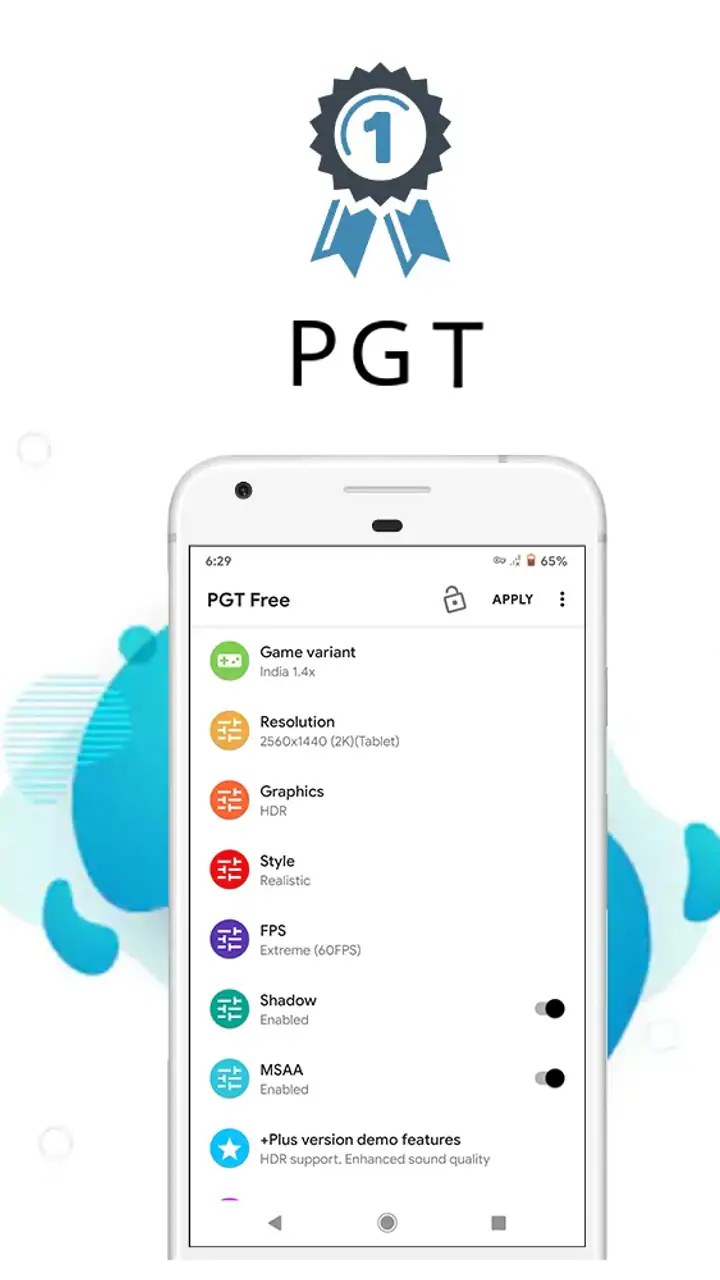
PGT: GFX, Launcher & Optimizer is an app designed to enhance your gaming experience by optimizing graphics settings for better performance on Android devices. It allows users to customize game graphics, unlock higher FPS, and adjust resolution settings, making it ideal for gamers looking to improve visual quality and performance.
Is PGT: GFX, Launcher & Optimizer safe to use?
Yes, PGT is generally considered safe to use. It doesn't require root access, which reduces potential risks to your device. However, downloading the app from reputable sources, such as the Google Play Store, is recommended to avoid any security issues. Always check user reviews and permissions before installation.
Does PGT: GFX, Launcher & Optimizer work on all games?
PGT is primarily designed for games that support graphical customization, particularly popular titles like PUBG Mobile. While it may work with various games, its effectiveness can vary. Some games may not support certain features, so it's best to check compatibility with the specific game you want to optimize.
Can PGT improve battery performance?
PGT can indirectly help with battery performance by optimizing graphic settings to use less power-intensive options. By lowering resolution or frame rates, the app reduces the load on your device's processor and GPU, potentially leading to longer battery life during gaming sessions.
Do I need a high-end device to use PGT effectively?
No, PGT is particularly beneficial for mid-range and low-end devices, as it allows users to adjust settings to improve performance. However, high-end devices can also benefit by maximizing graphics settings for superior visual quality. The app offers flexibility for all types of hardware.
Pros
- Enhances gaming performance significantly.
- User-friendly interface with easy navigation.
- Wide range of customization options.
- Supports various screen resolutions.
- Regular updates for new game compatibility.
Cons
- Requires in-app purchases for full features.
- May drain battery faster than usual.
- Occasional ads can be intrusive.
- Some features need root access.
- Limited support for older devices.


